Business Central: Optipack Guide
Below is a schematic overview of the outbound process of Business Central.

In standard Business Central, the outbound process starts when Sales Orders are created and released for fulfillment. These orders are grouped into Warehouse Shipments, and the warehouse team executes picking and packing operations before posting the shipment. While Business Central supports tracking of item dimensions and weights through Item Attributes or custom fields, there is no built-in cartonization engine that determines how to combine multiple items into the most efficient boxes.
This means that:
- Packing is typically done manually at the packing station, or by following simple static rules ("always use box type A unless item X is present").
- Item dimensions and weight data are not used to compute optimal box combinations.
- There is no spatial optimization, and packaging material or freight space is often wasted.
This is where OptiPack API comes in. The API can be called after all items and quantities for a shipment are known—that is, once the Warehouse Shipment has been created and its Sales Lines are finalized, but before any Handling Units, package labels, or shipping documents are generated. At this point, the full list of items (with dimensions and weights) can be sent to OptiPack to calculate how these should be best combined into available boxes.
In the remainder of this guide we demonstrate, in a sandbox environment, how we can generate a request (JSON format) and send it to our API. We'll add different elements to the BC UI to configure the necessary parameters and trigger these optimizations manually. Ideally, these optimizations are of course triggered automatically and results should be persisted in the necessary data tables of BC.
Required API data
Below is a minimal JSON for the /pack endpoint:
{
  "orders": [
    {
      "id": "order_1",
      "items": [
        {
          "id": "item_1",
          "width": 1,
          "height": 1,
          "depth": 1,
          "quantity": 4
        }
      ]
    }
  ],
  "bins": [
    {
      "id": "bin_1",
      "width": 1,
      "height": 1,
      "depth": 1
    }
  ]
}
It consists of the following pieces of informations:
orders: a list of the orders that must be packed; items of different orders will never be packed onto the samebin.bins: the different bins (HUs) available in the warehouse, with their dimensional information. Many other attributes & constraints are supported as well, for the full list, we refer to our API documentation.
For every order a list of items has to be provided, this contains information such as:
width,height,depth: the three dimensions of every itemquantity: how many of this item were ordered- many other possible constraints & attributes such as its weight, the weight it can carry, allowed orientations, sequence values and many many more. See our API documentation for a complete list.
While the concepts of orders and items (with identifiers and quantities) are known in a standard BC environment, important attributes such as their dimensions as well as information about the box assortment in the warehouse are optional or even missing. However, we'll see that these elements can quickly be added to BC in the guide below.
BC Data tables
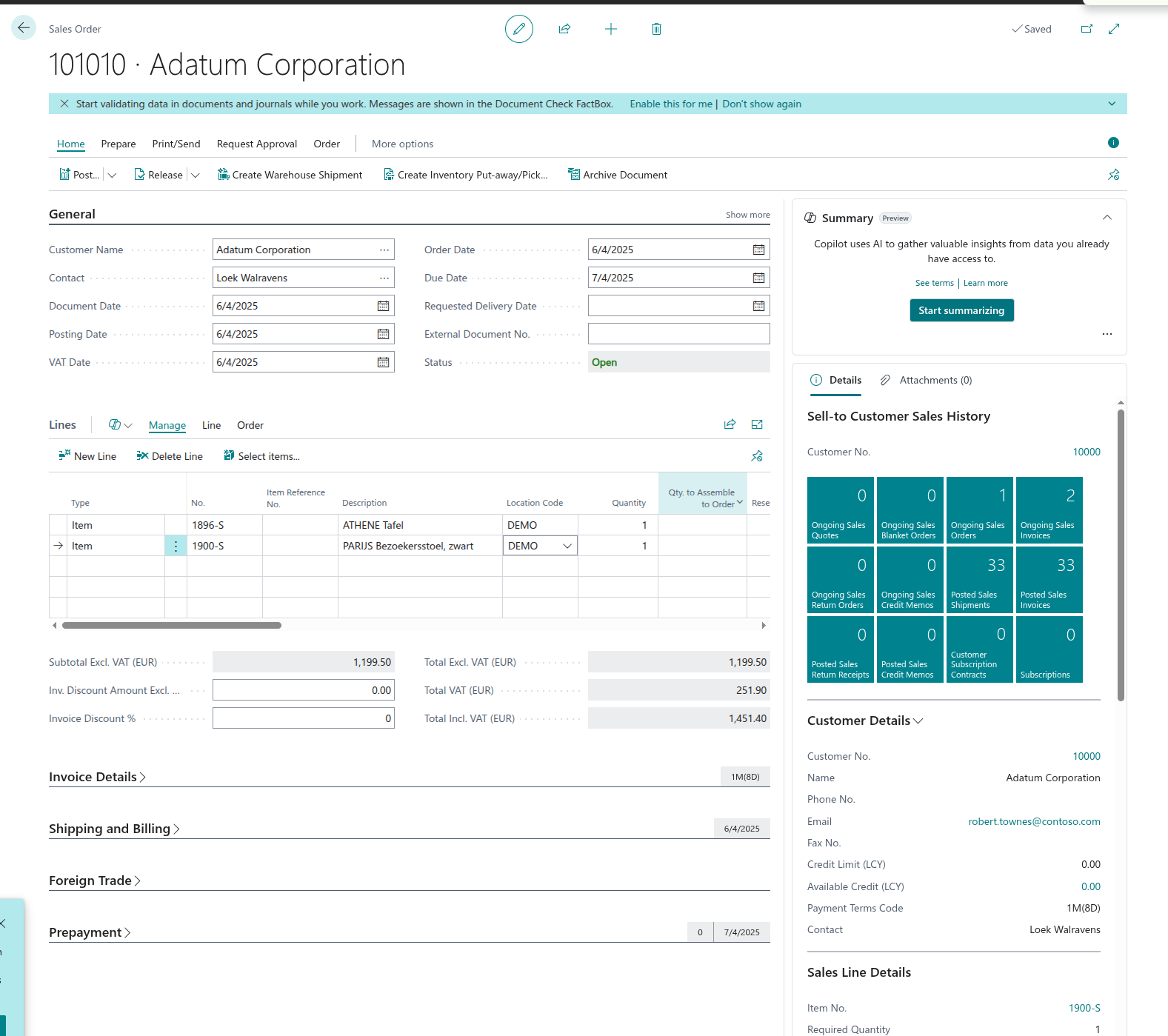
Sales Orders
As depicted in the overview of the introduction, the outbound flow starts with Sales Orders. We will create some ourselves in BC. We can navigate there through ALT + Q > Sales Orders. Once created, we need to make sure to put them in "Released" status so that they can be picked up by the Warehouse Shipments.
Warehouse Shipments
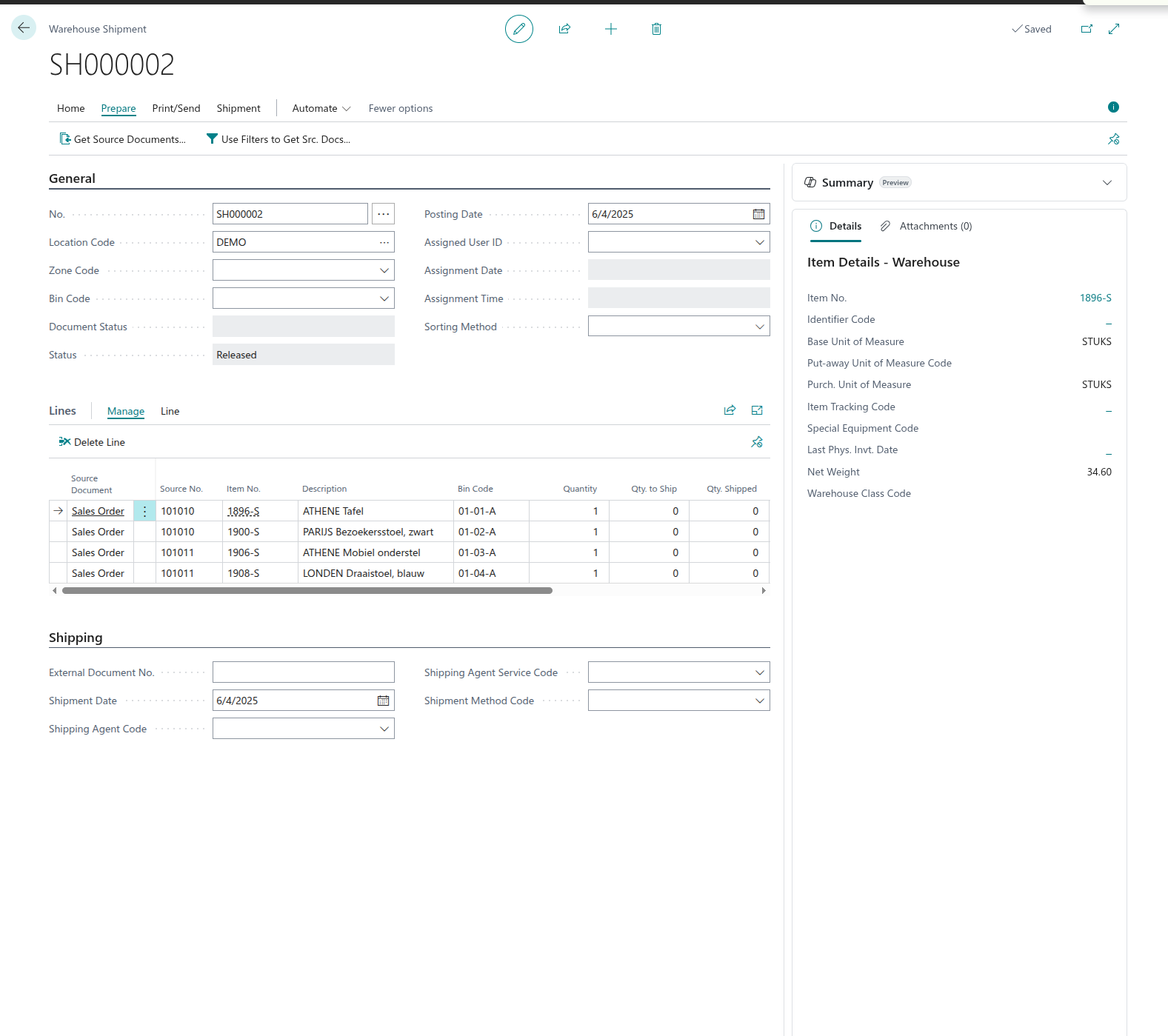
Once the Sales Orders are created and released, these can be turned into Warehouse Shipments, ready to be picked.
Integrating OptiPack API
Setup
We first create a new environment using the Admin Center which can be accessed through https://businesscentral.dynamics.com/[TENANT_ID]/admin
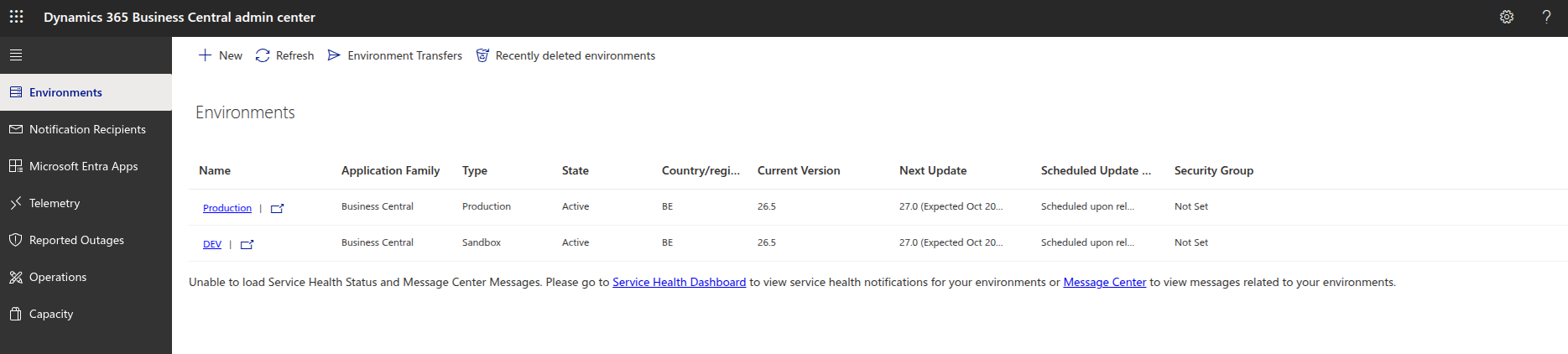
After creating a new sandbox development environment, we create a new AL project (VSCode has excellent plugins for this) and configure our app.json and launch.json as below:
{
    "id": "<CENSORED>",
    "name": "OptiPick",
    "publisher": "Default Publisher",
    "version": "1.0.0.0",
    "dependencies": [],
    "platform": "1.0.0.0",
    "application": "26.5.38752.38944",
    "runtime": "15.2",
    "idRanges": [
        { "from": 50100, "to": 50149 }
    ]
}
{
  "version": "0.2.0",
  "configurations": [
    {
      "name": "BC Online",
      "type": "al",
      "request": "launch",
      "server": "https://api.businesscentral.dynamics.com",
      "environmentName": "DEV",
      "tenant": "<CENSORED>",
      "schemaUpdateMode": "Synchronize"
    }
  ]
}
Configuration screen
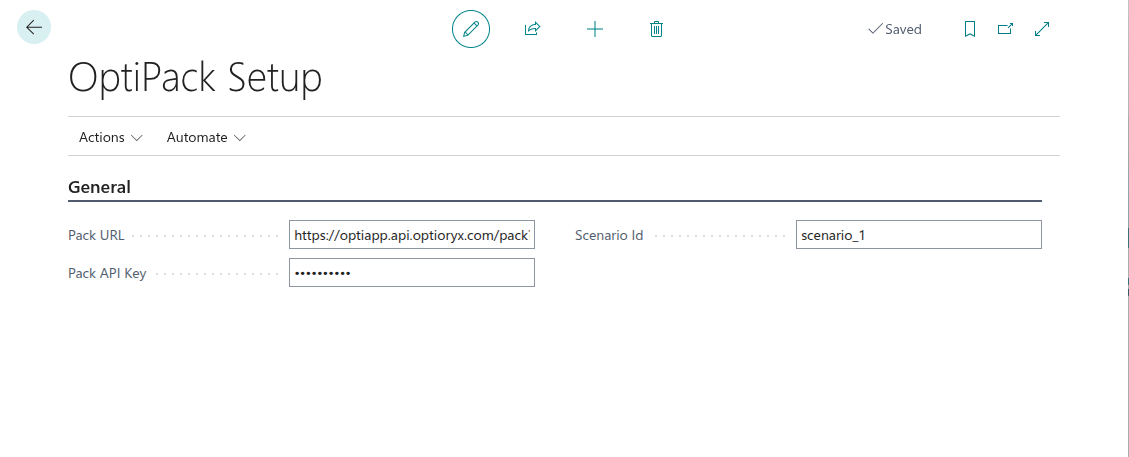
The first page we'll be adding to our BC environment allows to configure different parameters for the API such as the endpoint URL, an API key, etc. We'll create a table and page.
namespace DefaultPublisher.AL;

table 50122 "OptiPack Setup"
{
    DataClassification = CustomerContent;

    fields
    {
        field(1; "Primary Key"; Code[10]) { DataClassification = SystemMetadata; }
        field(10; "Pack URL"; Text[250]) { InitValue = "https://optiapp.api.optioryx.com/pack?upsert=true&synchronous=true"; }
        field(20; "Pack API Key"; Text[250]) { ExtendedDatatype = Masked; InitValue = "<CENSORED>"; }
        field(30; "Scenario Id"; Text[50]) { InitValue = "scenario_1"; }
    }

    keys { key(PK; "Primary Key") { Clustered = true; } }

    trigger OnInsert()
    begin
        if "Primary Key" = '' then
            "Primary Key" := 'SETUP';
    end;
}
namespace DefaultPublisher.AL;

page 50123 "OptiPack Setup"
{
    PageType = Card;
    ApplicationArea = All;
    UsageCategory = Administration;
    SourceTable = "OptiPack Setup";
    Caption = 'OptiPack Setup';

    layout
    {
        area(content)
        {
            group(General)
            {
                field("Pack URL"; Rec."Pack URL") { ApplicationArea = All; }
                field("Pack API Key"; Rec."Pack API Key") { ApplicationArea = All; }
                field("Scenario Id"; Rec."Scenario Id") { ApplicationArea = All; }
            }
        }
    }

    actions
    {
        area(Processing)
        {
            action(CreateOrOpen)
            {
                Caption = 'Create/Init';
                ApplicationArea = All;
                trigger OnAction()
                var
                    s: Record "OptiPack Setup";
                begin
                    if not s.Get('SETUP') then begin
                        s.Init();
                        s.Insert();
                        Message('OptiPack setup created. Fill URL and API key.');
                    end else
                        Page.Run(Page::"OptiPack Setup", s);
                end;
            }
        }
    }
}
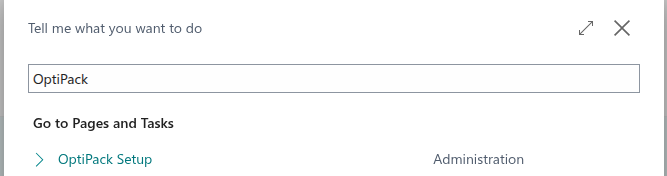
We can navigate to this new page using ALT + Q > OptiPack Setup:
Box management screen
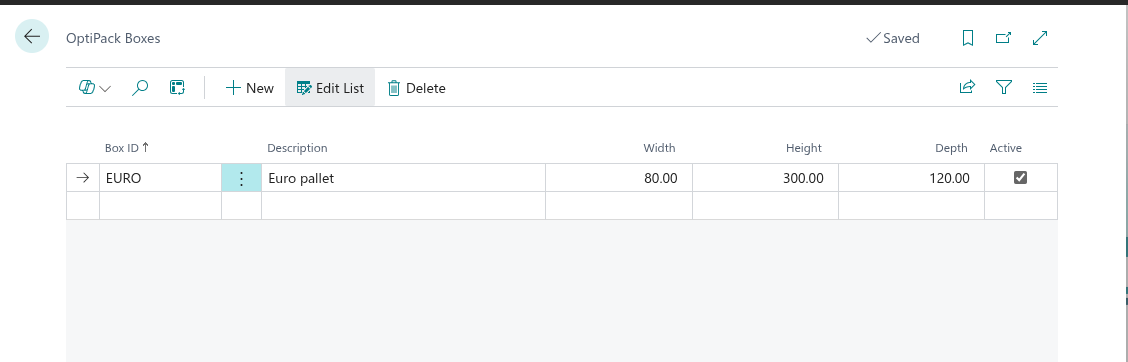
The next graphical element we'll be adding is a table that allows us to configure the attributes, such as the dimensions, of the different boxes in our warehouse. To keep it minimal, we'll only allow to configure dimensions, but of course more attributes that can be passed through our API, such as a maximal weight, can be added as well.
namespace DefaultPublisher.AL;

table 50120 "OptiPack Box"
{
    DataClassification = CustomerContent;

    fields
    {
        field(1; Code; Code[20]) { Caption = 'Box ID'; }
        field(10; Description; Text[100]) { Caption = 'Description'; }
        field(20; Width; Decimal) { Caption = 'Width'; }
        field(30; Height; Decimal) { Caption = 'Height'; }
        field(40; Depth; Decimal) { Caption = 'Depth'; }
        field(50; Active; Boolean) { Caption = 'Active'; InitValue = true; }
    }

    keys
    {
        key(PK; Code) { Clustered = true; }
    }
}
namespace DefaultPublisher.AL;

page 50121 "OptiPack Boxes"
{
    PageType = List;
    ApplicationArea = All;
    UsageCategory = Lists;
    SourceTable = "OptiPack Box";
    Caption = 'OptiPack Boxes';

    layout
    {
        area(content)
        {
            repeater(Boxes)
            {
                field(Code; Rec.Code) { ApplicationArea = All; }
                field(Description; Rec.Description) { ApplicationArea = All; }
                field(Width; Rec.Width) { ApplicationArea = All; }
                field(Height; Rec.Height) { ApplicationArea = All; }
                field(Depth; Rec.Depth) { ApplicationArea = All; }
                field(Active; Rec.Active) { ApplicationArea = All; }
            }
        }
    }
}
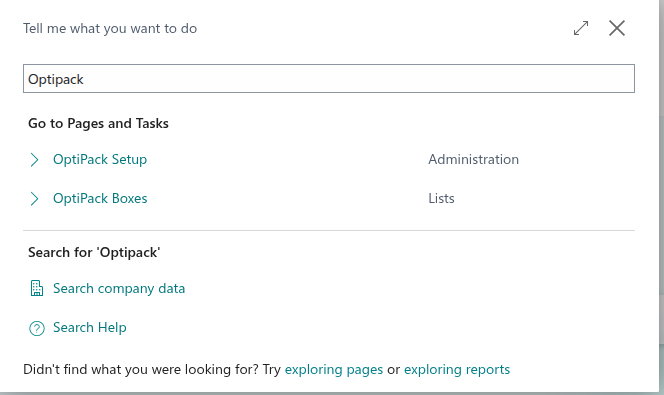
Once created, we can navigate to this page using ALT + Q > OptiPack Boxes:
Adding a button to Sales Orders
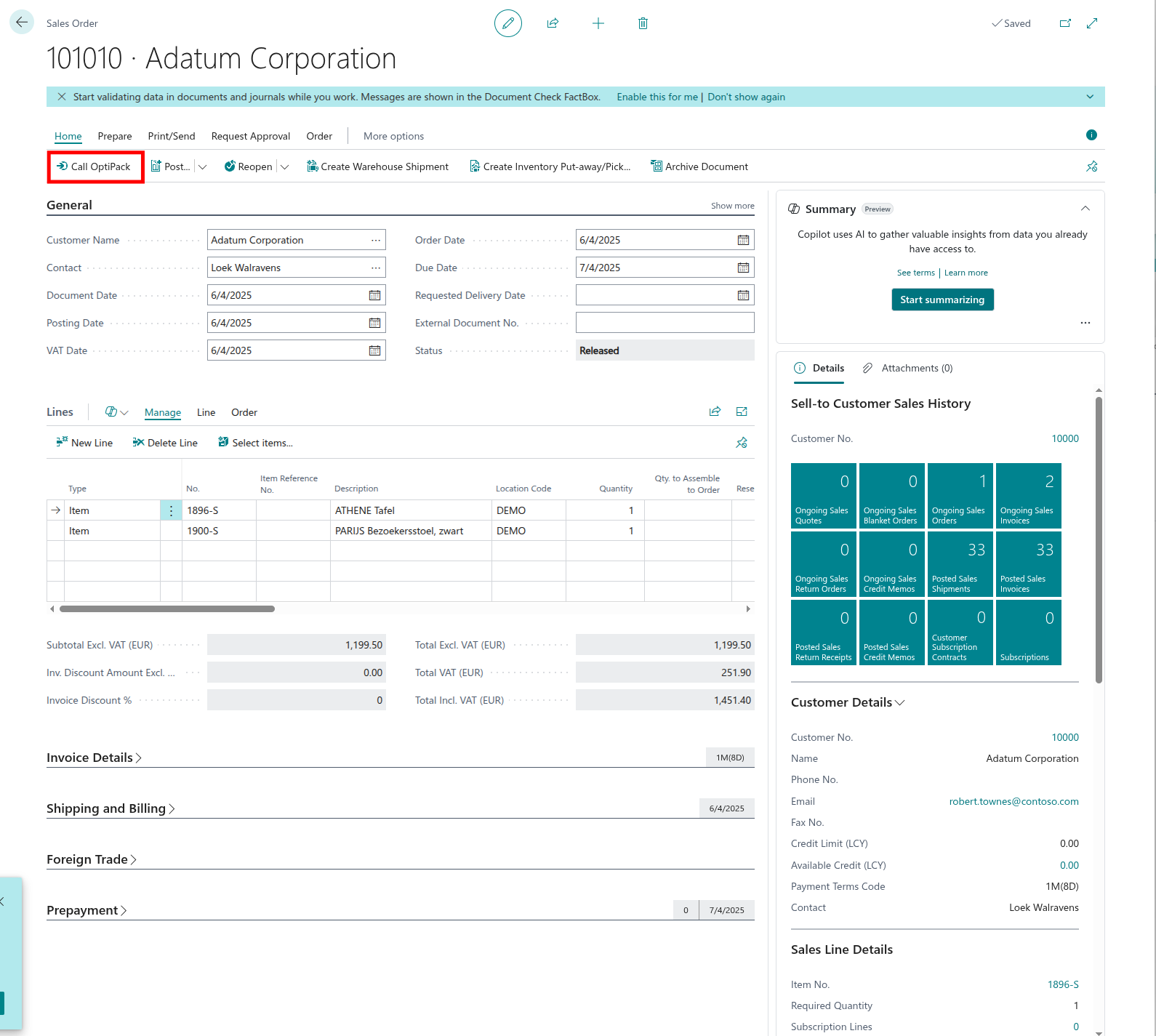
We'll extend the Sales Order page of BC to have an extra button that calls our OptiPack API using the ordered items and their quantities. This button can be added to a Warehouse Shipment as well of course.
pageextension 50133 "SalesOrder_OptiPack" extends "Sales Order"
{
    actions
    {
        addlast(Processing)
        {
            action(CallOptiPack)
            {
                Caption = 'Call OptiPack';
                ApplicationArea = All;
                Promoted = true;
                PromotedCategory = Process;
                PromotedIsBig = true;

                trigger OnAction()
                var
                    Mgt: Codeunit "OptiPack Mgt";
                    Hdr: Record "Sales Header";
                begin
                    Hdr := Rec; // current Sales Order
                    if Hdr."Document Type" <> Hdr."Document Type"::Order then
                        Error('This action works on Sales Orders only.');

                    Mgt.RunForSalesOrder(Hdr);
                end;
            }
        }
    }
}
When opening a Sales Order, we'll now see this button on top:
Define OptiPack result record
We will store the results of our OptiPack API in a data table with the following definition:
namespace DefaultPublisher.AL;

table 50125 "OptiPack Run"
{
    DataClassification = CustomerContent;

    fields
    {
        field(1; "Entry No."; Integer) { AutoIncrement = true; }
        field(10; "Sales Order No."; Code[20]) { }
        field(20; "Response Id"; Text[100]) { }
        field(30; "Created At"; DateTime) { }
        field(40; "Raw Response"; Blob) { SubType = Memo; }
    }
    keys
    {
        key(PK; "Entry No.") { Clustered = true; }
        key(SO; "Sales Order No.") { }
    }
}
Calling our API when clicking the button
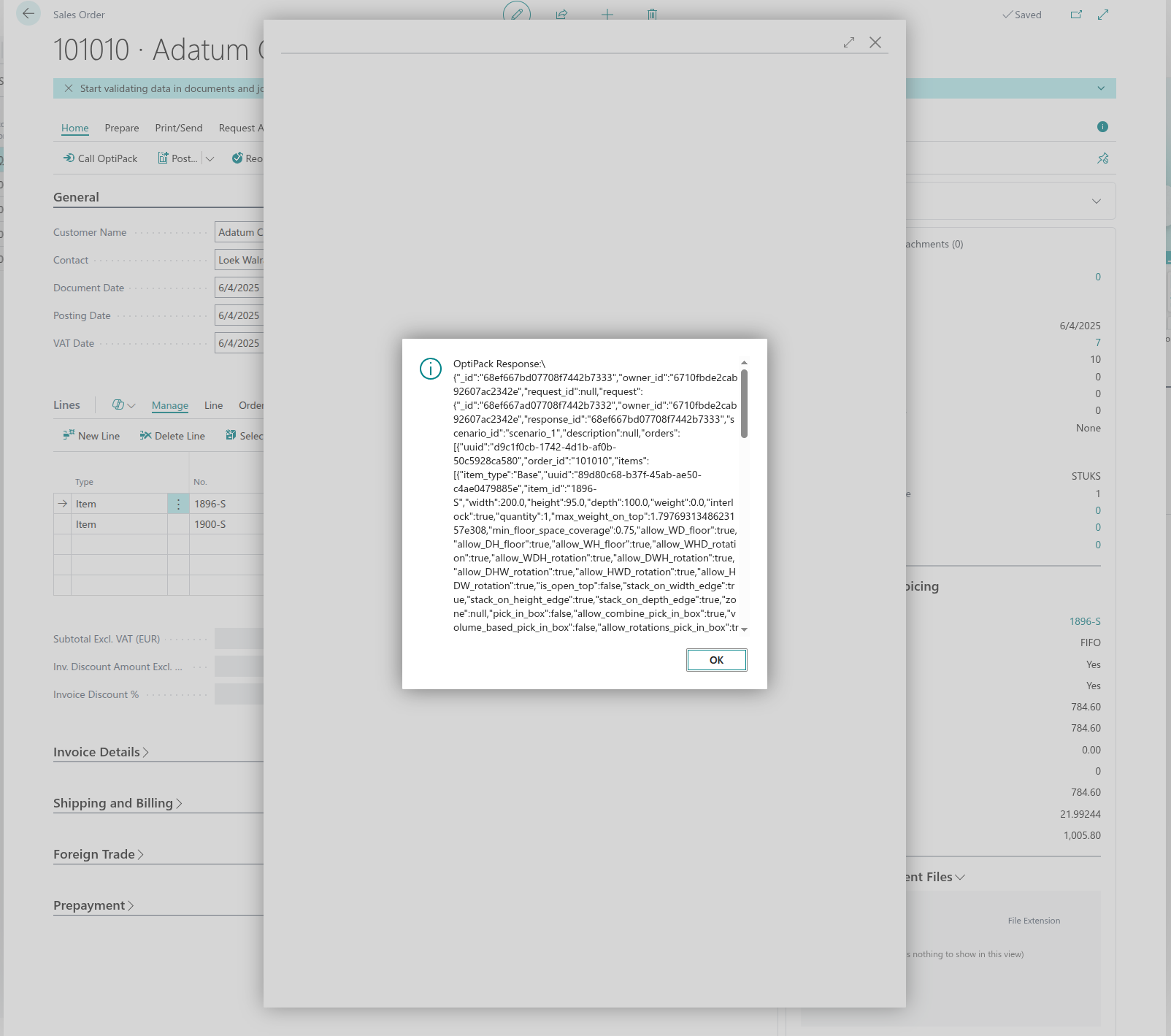
The largest code file contains the logic to call our OptiPack API. The main procedure is called RunForSalesOrder. After declaring the variables, we check if the configuration screen has been filled in properly, if not we show an error message. Afterwards, we start creating a JsonObject that will serve as our request payload. The request consists of a list or orders OrdersArr, a list of bins BinsArr. Each element in the OrdersArr is an object that contains a list of items to pack ItemsArr. We iterate over all items within the Sales Order from where the button was clicked and try to retrieve attributes with names Width, Height, and Length or in Dutch (the language my sandbox environment was set to) Breedte, Hoogte, Diepte using the TryGetDimFromAttributes sub-procedure. In case any of the dimension attributes is missing, an error is thrown that lists which items miss an essential attribute so that their master data can be fixed. When all dimensions can be retrieved an ItemObj with the identifier, dimensions and quantity is made and added to the ItemsArr. After populating that list, the OrderObj is made using the list of items and an identifier. Finally, we retrieve the content from the Box Management page to create BinObj with an identifier, width, height, length to add to the BinsArr. Afterwards we construct the request by adding a scenario_id, the BinsArr and the OrdersArr to the payload and setting the necessary headers, e.g. a header for the API Key, which is then sent to our API. Finally, we parse the response from our API by creating OptiPack Run records for our data table and using our visualisation endpoint the visualise these results within Business Central.
namespace DefaultPublisher.AL;

using Microsoft.Sales.Document;
using Microsoft.Inventory.Item;

codeunit 50132 "OptiPack Mgt"
{

    /// Looks up a decimal attribute for an Item No. by any of the candidate names (case-insensitive, EN/NL)
    local procedure TryGetDimFromAttributes(ItemNo: Code[20]; CandidateNames: array[2] of Text; var OutVal: Decimal): Boolean
    var
        ItemAttr: Record Microsoft.Inventory.Item.Attribute."Item Attribute";
        ItemAttrValue: Record Microsoft.Inventory.Item.Attribute."Item Attribute Value";
        Map: Record Microsoft.Inventory.Item.Attribute."Item Attribute Value Mapping";
        NameLower: Text;
        Cand1Lower: Text;
        Cand2Lower: Text;
        ValTxt: Text;
        IsDecimal: Boolean;
    begin
        OutVal := 0;

        // We need mappings for this Item
        Map.Reset();
        Map.SetRange("Table ID", Database::Item);
        Map.SetRange("No.", ItemNo);
        if not Map.FindSet() then
            exit(false);

        // Normalize candidate names to lowercase for matching
        Cand1Lower := LowerCase(CandidateNames[1]);
        Cand2Lower := LowerCase(CandidateNames[2]);

        repeat
            if ItemAttr.Get(Map."Item Attribute ID") then begin
                NameLower := LowerCase(ItemAttr.Name);

                if (NameLower = Cand1Lower) or (NameLower = Cand2Lower) then begin
                    if ItemAttrValue.Get(Map."Item Attribute ID", Map."Item Attribute Value ID") then begin
                        // Value Type can be Decimal/Text/Option; prefer Decimal/Numeric if present
                        if Evaluate(OutVal, ItemAttrValue.Value) and (OutVal = ItemAttrValue."Numeric Value") then begin
                            OutVal := ItemAttrValue."Numeric Value";
                            exit(true);
                        end else begin
                            // try to parse the text value
                            ValTxt := ItemAttrValue.Value;
                            if Evaluate(OutVal, ValTxt) then
                                exit(true);
                        end;
                    end;
                end;
            end;
        until Map.Next() = 0;

        exit(false);
    end;

    procedure RunForSalesOrder(var SalesHdr: Record "Sales Header")
    var
        Setup: Record "OptiPack Setup";
        Box: Record "OptiPack Box";
        SL: Record "Sales Line";

        // Item Attribute tables (standard)
        ItemAttr: Record Microsoft.Inventory.Item.Attribute."Item Attribute";                       // 7500
        ItemAttrValue: Record Microsoft.Inventory.Item.Attribute."Item Attribute Value";            // 7501
        ItemAttrValueMap: Record Microsoft.Inventory.Item.Attribute."Item Attribute Value Mapping"; // 7502

        Http: HttpClient;
        Resp: HttpResponseMessage;
        Cnt: HttpContent;
        ReqHdrs: HttpHeaders;
        CntHdrs: HttpHeaders;

        Payload: JsonObject;
        OrdersArr: JsonArray;
        OrderObj: JsonObject;
        ItemsArr: JsonArray;
        ItemObj: JsonObject;
        BinsArr: JsonArray;
        BinObj: JsonObject;
        Root: JsonObject;
        Tok: JsonToken;
        ResponseId: Text;

        BodyTxt: Text;
        MissingTxt: Text;
        MissingPerItem: Text;
        W, H, L : Decimal;
        Qty: Decimal;

        WidthStrings: array[2] of Text;
        HeightStrings: array[2] of Text;
        LengthStrings: array[2] of Text;

        Run: Record "OptiPack Run";
        os: OutStream;
        VizUrl: Text;
        VizHttp: HttpClient;
        VizResp: HttpResponseMessage;
        VizCntHdrs: HttpHeaders;
        VizHtml: Text;
        VizPage: Page "OptiPack Visualisation";
    begin
        // Setup
        if not Setup.FindFirst() then
            Error('Open "OptiPack Setup" and click Create/Init, then fill URL and API key.');
        if (Setup."Pack URL" = '') or (Setup."Pack API Key" = '') then
            Error('OptiPack Setup is incomplete. URL/API key missing.');

        // Collect items from this Sales Order
        OrdersArr := OrdersArr;
        OrderObj := OrderObj;
        ItemsArr := ItemsArr;

        SL.SetRange("Document Type", SL."Document Type"::Order);
        SL.SetRange("Document No.", SalesHdr."No.");
        SL.SetRange(Type, SL.Type::Item);

        if SL.FindSet() then
            repeat
                Qty := SL.Quantity;
                if Qty <= 0 then
                    continue;

                WidthStrings[1] := 'Width';
                WidthStrings[2] := 'Breedte';
                HeightStrings[1] := 'Height';
                HeightStrings[2] := 'Hoogte';
                LengthStrings[1] := 'Length';
                LengthStrings[2] := 'Diepte';
                // Fetch dimensions from Item Attributes (supports EN + NL names)
                if not TryGetDimFromAttributes(SL."No.", WidthStrings, W) then
                    W := 0;
                if not TryGetDimFromAttributes(SL."No.", HeightStrings, H) then
                    H := 0;
                if not TryGetDimFromAttributes(SL."No.", LengthStrings, L) then
                    L := 0;

                MissingPerItem := '';
                if W = 0 then MissingPerItem += 'Width/Breedte ';
                if H = 0 then MissingPerItem += 'Height/Hoogte ';
                if L = 0 then MissingPerItem += 'Length/Diepte ';

                if MissingPerItem <> '' then begin
                    if MissingTxt <> '' then MissingTxt += '\';
                    MissingTxt += StrSubstNo('Item %1 missing: %2', SL."No.", MissingPerItem);
                end else begin
                    Clear(ItemObj);
                    ItemObj.Add('id', SL."No.");
                    ItemObj.Add('width', W);
                    ItemObj.Add('height', H);
                    ItemObj.Add('depth', L); // map Length/Diepte -> depth
                    ItemObj.Add('quantity', Qty);
                    ItemsArr.Add(ItemObj);
                end;
            until SL.Next() = 0;

        if MissingTxt <> '' then
            Error(MissingTxt);
        if ItemsArr.Count() = 0 then
            Error('No qualifying item lines with dimensions on Sales Order %1.', SalesHdr."No.");

        // Build orders array
        Clear(OrderObj);
        OrderObj.Add('id', SalesHdr."No.");
        OrderObj.Add('items', ItemsArr);
        OrdersArr.Add(OrderObj);

        // Build bins from OptiPack Boxes (Active only)
        BinsArr := BinsArr;
        Box.SetRange(Active, true);
        if Box.FindSet() then
            repeat
                Clear(BinObj);
                BinObj.Add('id', Box.Code);
                BinObj.Add('width', Box.Width);
                BinObj.Add('height', Box.Height);
                BinObj.Add('depth', Box.Depth);
                BinsArr.Add(BinObj);
            until Box.Next() = 0
        else
            Error('No active OptiPack Boxes found. Open "OptiPack Boxes" and create at least one.');

        // Build payload
        Clear(Payload);
        Payload.Add('scenario_id', Setup."Scenario Id");
        Payload.Add('orders', OrdersArr);
        Payload.Add('bins', BinsArr);

        Payload.WriteTo(BodyTxt);
        Cnt.WriteFrom(BodyTxt);

        // Content headers
        Cnt.GetHeaders(CntHdrs);
        if CntHdrs.Contains('Content-Type') then CntHdrs.Remove('Content-Type');
        CntHdrs.Add('Content-Type', 'application/json');

        // Request headers
        ReqHdrs := Http.DefaultRequestHeaders();
        if ReqHdrs.Contains('Accept') then ReqHdrs.Remove('Accept');
        if ReqHdrs.Contains('x-api-key') then ReqHdrs.Remove('x-api-key');
        ReqHdrs.Add('Accept', 'application/json');
        ReqHdrs.Add('x-api-key', Setup."Pack API Key");

        Http.Timeout := 120000;
        if not Http.Post(Setup."Pack URL", Cnt, Resp) then
            Error('HTTP POST failed.');

        Resp.Content().ReadAs(BodyTxt);
        if not Resp.IsSuccessStatusCode() then
            Error('OptiPack error %1: %2', Resp.HttpStatusCode(), CopyStr(BodyTxt, 1, 4000));

        Message('OptiPack Response:%1%2', '\', CopyStr(BodyTxt, 1, 4000));
        // 1) Parse response_id (or request_id) from JSON
        if Root.ReadFrom(BodyTxt) then begin
            if Root.Get('_id', Tok) and Tok.IsValue() then
                ResponseId := Tok.AsValue().AsText()
            else if Root.Get('request_id', Tok) and Tok.IsValue() then
                ResponseId := Tok.AsValue().AsText();
        end;

        if ResponseId <> '' then begin
            Run.Init();
            Run."Sales Order No." := SalesHdr."No.";
            Run."Response Id" := CopyStr(ResponseId, 1, 100);
            Run."Created At" := CurrentDateTime();
            Run."Raw Response".CreateOutStream(os);
            os.WriteText(CopyStr(BodyTxt, 1, MaxStrLen(BodyTxt)));
            Run.Insert();

            COMMIT;

            VizUrl := StrSubstNo('https://optiapp.api.optioryx.com/visualisation/interactive/%1/0/0?offline=false', ResponseId);

            VizHttp.DefaultRequestHeaders().Add('Accept', 'text/html');
            VizHttp.DefaultRequestHeaders().Add('x-api-key', Setup."Pack API Key");

            if not VizHttp.Get(VizUrl, VizResp) then begin
                Error('HTTP GET failed for visualisation.');
            end;

            VizResp.Content().ReadAs(VizHtml);

            if not VizResp.IsSuccessStatusCode() then
                Error('Visualisation error %1: %2', VizResp.HttpStatusCode(), CopyStr(VizHtml, 1, 4000));

            // 5) Show in the viewer page
            VizPage.LoadHtml(VizHtml);
            VizPage.RunModal();
        end else
            Message('Pack call succeeded but no response id was found. Response:%1%2', '\', CopyStr(BodyTxt, 1, 4000));
    end;
}
Visualising the packing result in BC
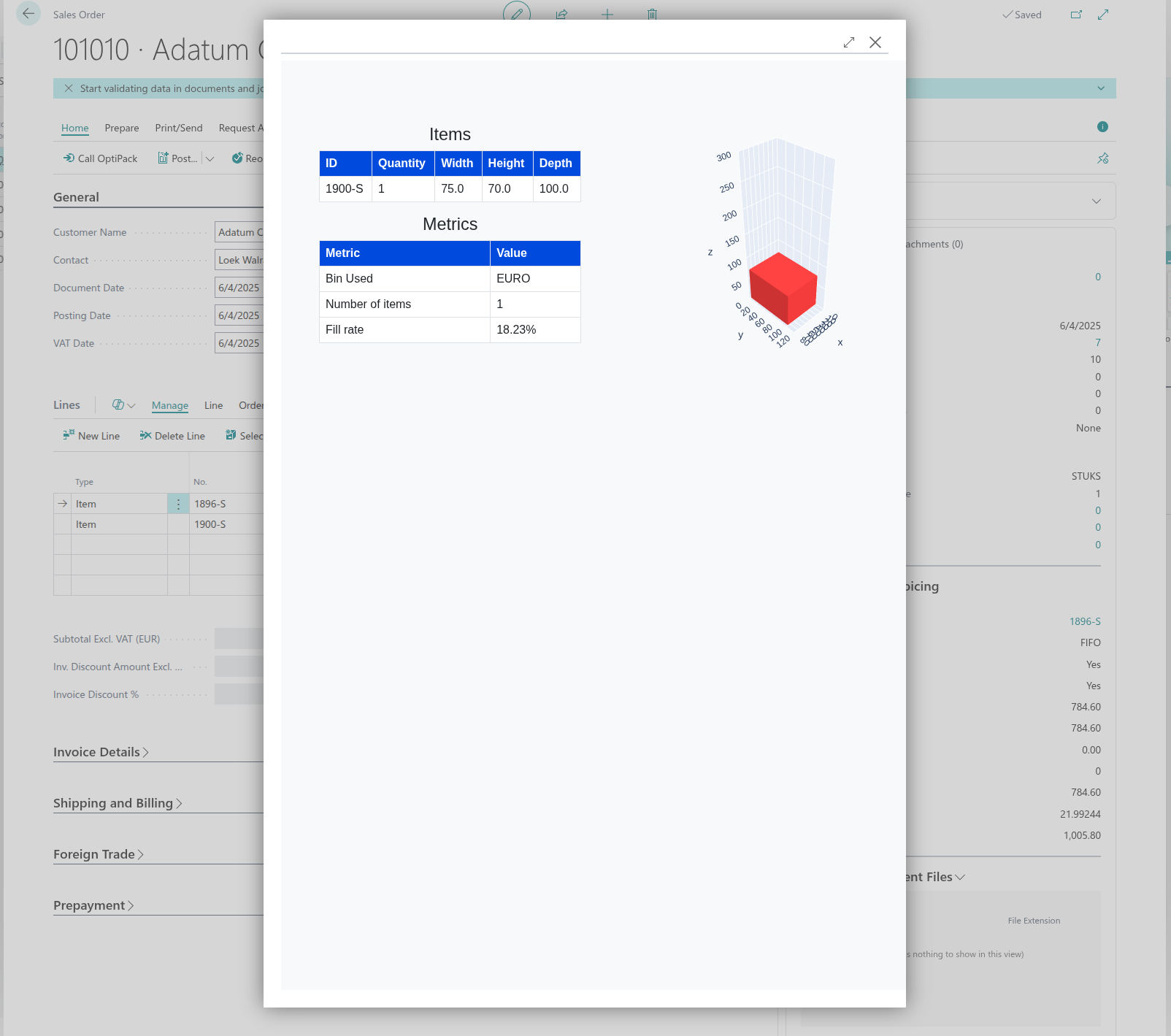
The OptiPack API contains an endpoint that returns HTML with an interactive visualisation that can be embedded in another system. We will integrate this visualisation in Business Central as a final step. We first create a page:
page 50128 "OptiPack Visualisation"
{
    PageType = Card;
    ApplicationArea = All;
    Caption = 'OptiPack Visualisation';

    layout
    {
        area(content)
        {
            usercontrol(Viewer; "OptiPack.HtmlViewer")
            {
                ApplicationArea = All;

                trigger Ready()
                begin
                    IsReady := true;
                    if HtmlToLoad <> '' then begin
                        CurrPage.Viewer.SetHtml(HtmlToLoad);
                        // Optional: clear buffer after push
                        // HtmlToLoad := '';
                    end;
                end;
            }
        }
    }

    var
        HtmlToLoad: Text;
        IsReady: Boolean;

    /// Call this BEFORE or AFTER the page opens; it buffers until the add-in is ready.
    procedure LoadHtml(Html: Text)
    begin
        HtmlToLoad := Html;
        if IsReady then
            CurrPage.Viewer.SetHtml(HtmlToLoad);
    end;

    trigger OnOpenPage()
    begin
        // in case Ready already fired quickly on some clients, the buffer logic still works
    end;
}
Which contains the following HTMLViewer:
namespace DefaultPublisher.AL;

controladdin "OptiPack.HtmlViewer"
{
    RequestedHeight = 700;
    RequestedWidth = 1000;
    MinimumHeight = 300;
    MinimumWidth = 600;
    VerticalStretch = true;
    HorizontalStretch = true;

    Scripts = 'scripts/optipackviewer.js'; // add this file to your project
    StartupScript = 'scripts/optipackviewer.js';

    event Ready();

    procedure SetHtml(Html: Text);
}
This embeds the HTML returned by our API in a page using this simple javascript script:
(function () {
  var container, iframe;

  function ensure() {
    // BC injects <div id="controlAddIn"> as the host root
    container = document.getElementById('controlAddIn');
    if (!container) {
      // very defensive: if not yet present, retry soon
      setTimeout(ensure, 10);
      return;
    }
    container.style.margin = '0';
    container.style.padding = '0';
    container.style.width = '100%';
    container.style.height = '100%';
    container.style.overflow = 'hidden';

    if (!iframe) {
      iframe = document.createElement('iframe');
      iframe.setAttribute('title', 'OptiPack Visualisation');
      iframe.style.border = '0';
      iframe.style.width = '100%';
      iframe.style.height = '100%';      // Fill add-in
      iframe.style.display = 'block';
      container.appendChild(iframe);

      // Signal BC that the add-in is ready
      if (Microsoft && Microsoft.Dynamics && Microsoft.Dynamics.NAV) {
        Microsoft.Dynamics.NAV.InvokeExtensibilityMethod('Ready', []);
      }
    }
  }

  // Write full HTML string into the iframe document
  function writeHtmlToIframe(html) {
    ensure();
    if (!iframe) return;

    // Inject CSS to guarantee the viz has measurable height
    var headBoost =
      '<style>html,body{height:100%;margin:0;padding:0;overflow:hidden;} ' +
      '#root,#app,.container,.visualization-container{height:100% !important;} ' +
      'iframe,canvas,svg{max-width:100%;}</style>';

    var doc = iframe.contentWindow.document;
    doc.open();
    // Prepend our boost style before user HTML
    doc.write(headBoost + (html || ''));
    doc.close();

    // If content relies on layout after load, try a couple of resizes
    try {
      var tryResize = function () {
        var body = doc.body, de = doc.documentElement;
        var h = Math.max(
          body.scrollHeight, body.offsetHeight,
          de.clientHeight, de.scrollHeight, de.offsetHeight
        );
        // If parent add-in is stretching, keep iframe at 100%; if zero, fallback to content height
        if (container && container.clientHeight === 0 && h > 0) {
          iframe.style.height = h + 'px';
        } else {
          iframe.style.height = '100%';
        }
      };
      setTimeout(tryResize, 50);
      setTimeout(tryResize, 300);
      window.addEventListener('resize', tryResize);
    } catch (e) {
      // ignore
    }
  }

  // Expose to AL
  window.SetHtml = function (html) {
    writeHtmlToIframe(String(html || ''));
  };

  // Initial setup
  ensure();
})();
The result is the following:
Field mapping (recap)
| OptiPack JSON | Business Central source |
|---|---|
orders[].id | Sales Order No. (Sales Header."No.") or Warehouse Shipment No. (if you pack per shipment) |
orders[].items[].id | Item No. (Sales Line."No.") |
orders[].items[].quantity | Sales Line.Quantity (or Qty. to Ship if partials) |
orders[].items[].width/height/depth | Item Attributes (e.g., Width/Breedte, Height/Hoogte, Length/Diepte) or custom fields |
orders[].items[].weight (optional) | Item Attribute or Unit Weight field if you keep one |
orders[].items[].allowed_orientations / fragile flags (optional) | Item Attributes / custom flags |
bins[].id | OptiPack Box Code (OptiPack Box.Code) |
bins[].width/height/depth | OptiPack Box.Width/Height/Depth |
other bins[] constraints (max weight, stack limits, etc.) | Add columns to OptiPack Box and pass through |
scenario_id | OptiPack Setup."Scenario Id" |
Where to call OptiPack in BC?
Pick a path (teams usually start with A, then evolve to B):
A) After Shipment is ready (simplest POC)
- Users create Warehouse Shipments as usual.
- From Sales Order or Warehouse Shipment, call OptiPack with the order's lines (Item No., quantity, dimensions/weight).
- Show the packing plan + visualization to the packer.
Pros: Very low friction, minimal dev.
Cons: You still pack manually in BC (unless you write back as packages).
B) Shipment-centric with package write-back
- When a Warehouse Shipment is ready for packing, collect its lines → build one OptiPack
order. - Call OptiPack; on success, create BC Packages/Lines (or your custom Package tables) per OptiPack result.
- Print labels / hand over to your carrier add-on.
Pros: Produces system packages you can label/ship.
Cons: Requires a small "write-back" layer (custom page/table or a package add-on).
Note: Cartonization does not depend on Bin Code allocation. You only need the order's items, quantities, and physical attributes, plus your box catalog.
Persisting the results (BC)
- Store the run header:
OptiPack Runwith Sales Order No., response/request id, timestamp, raw payload/response (Blob). - Write system packages (optional):
- If you already use a packing add-on, convert OptiPack bins → add-on's package tables.
- If not, add a simple "OptiPack Package" table (Header + Lines) and render it on a "Packing Worksheet" page for label printing.
- Keep traceability: Save the
response_id, selected box per order, total cubic fill, and any rule flags (e.g., "fragile kept upright") for KPIs.
Setup checklist (BC)
Read permissions
Sales Header/Line,Item,Item Attribute / Attribute Value / Mapping.
Write permissions
OptiPack Setup,OptiPack Box,OptiPack Run(and your optional Package tables).
Data quality
- Item Attributes for Width/Height/Length (and Weight if used) consistently maintained.
- Units are consistent between items and boxes (cm/mm/in). If they aren't, normalize before sending.
Connectivity & security
- Allow outbound HTTPS to
optiapp.api.optioryx.com. - Keep API key in Masked field; restrict access to OptiPack Setup.
Feature toggles
- Add
OptiPack EnabledandShow Visualisationbooleans in Setup so ops can bypass quickly.
Box catalog
- Maintain active boxes in OptiPack Boxes. Add optional columns you need (see our API docs for possible attributes and constraints our algorithm supports).
Additional Tips & Tricks
Reliability & monitoring
- Retry with exponential backoff on HTTP 429/5xx.
- Set a sensible timeout; on timeout, fall back to current manual packing.
- Log: order/shipment id, request hash, HTTP code, response id, decision (optimized vs fallback).
Idempotency
- Use the BC order/shipment no. + a timestamp as a run key.
- If you re-run, upsert the OptiPack Run and overwrite packages only when you confirm.
Performance
- Build the JSON directly from
Sales Linejoined to Attribute Mappings (filter by current order/shipment). - Validate all required attributes in one pass; present a single error list to fix master data.
Data fidelity
- If an item has multiple UoMs, ensure the dimensions match the selling UoM (e.g., pack-size vs each).
- For sets/kits, expand to component items with physical dimensions before sending.
UX
- Show the interactive visualization inline (your control add-in) and provide a quick "Copy result summary" action: chosen box, fill rate, #boxes, weight.
Governance
- Keep an eye on box creep: archive inactive sizes so the optimizer searches only real, stocked cartons.
- Add a simple A/B toggle: operator can compare OptiPack result with "default box" to build trust.